Share your event on Instagram and Facebook
Ready-made Story and post graphics with a QR code, a caption, and one-tap sharing to Instagram and Facebook.
Every published event and season comes with three ready-made graphics, built from your event with your logo and brand color. They work for any event you sell tickets to: games, plays, concerts, galas, festivals and fundraisers.
- Link preview: shows automatically whenever your ticket link is shared on Facebook, in Instagram DMs, texts or email. It has the name, date, place, price and your logo.
- Instagram Story: a tall graphic with a QR code, with room at the bottom for Instagram's Link sticker.
- Feed post: a square graphic with the price and a QR code.
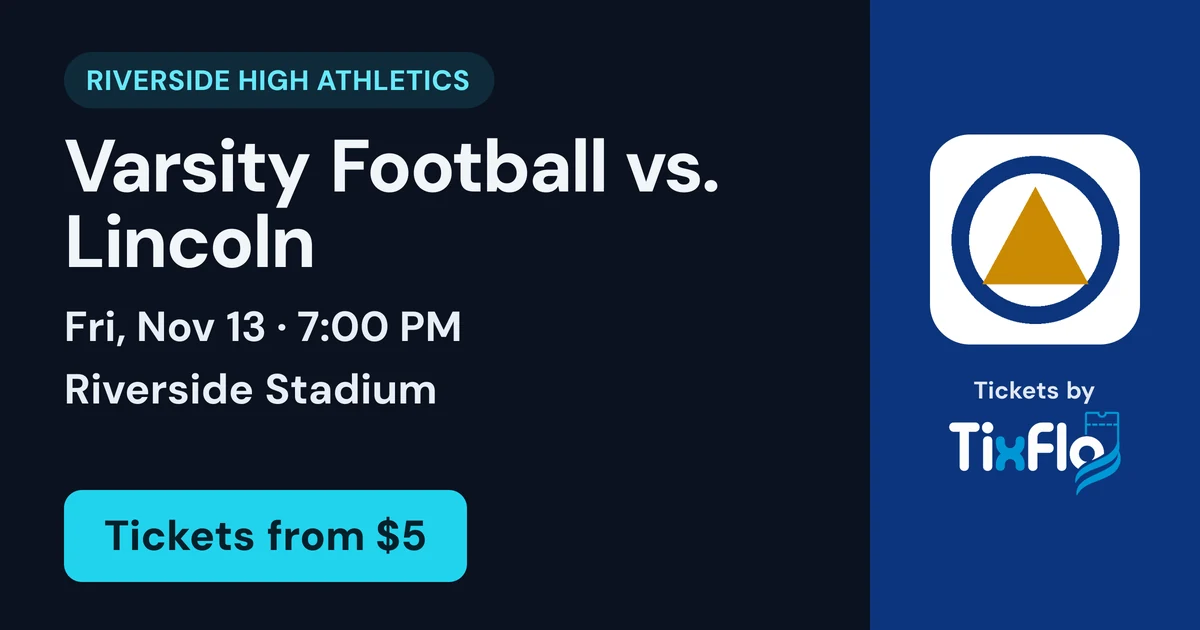
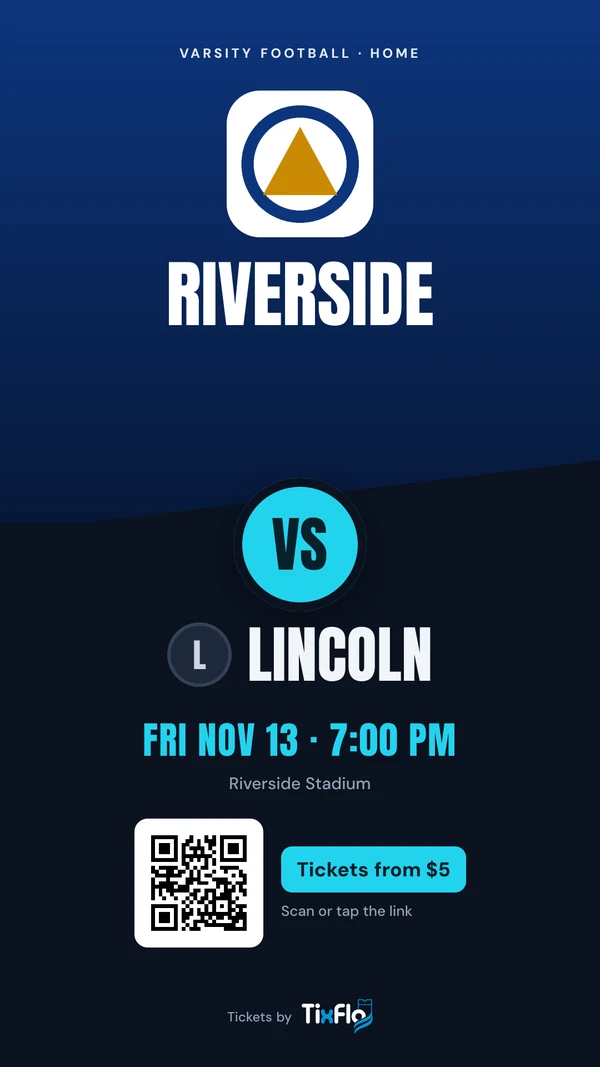
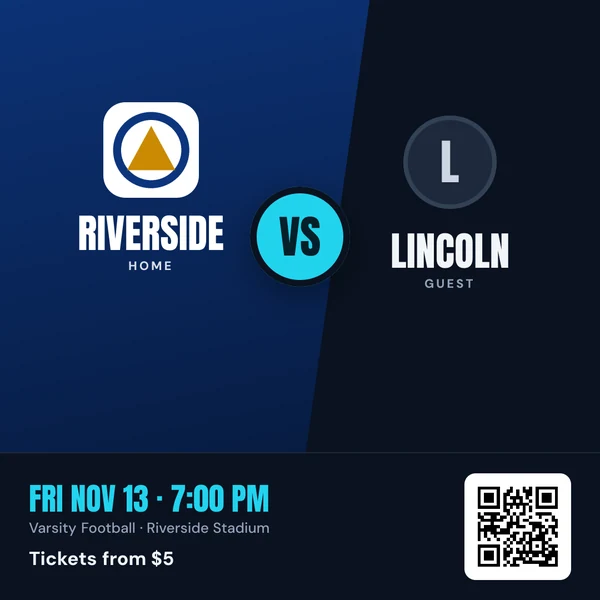
The QR codes open your event’s ticket page, so people who see a screenshot or a printed copy can still buy.
Share from TixFlo
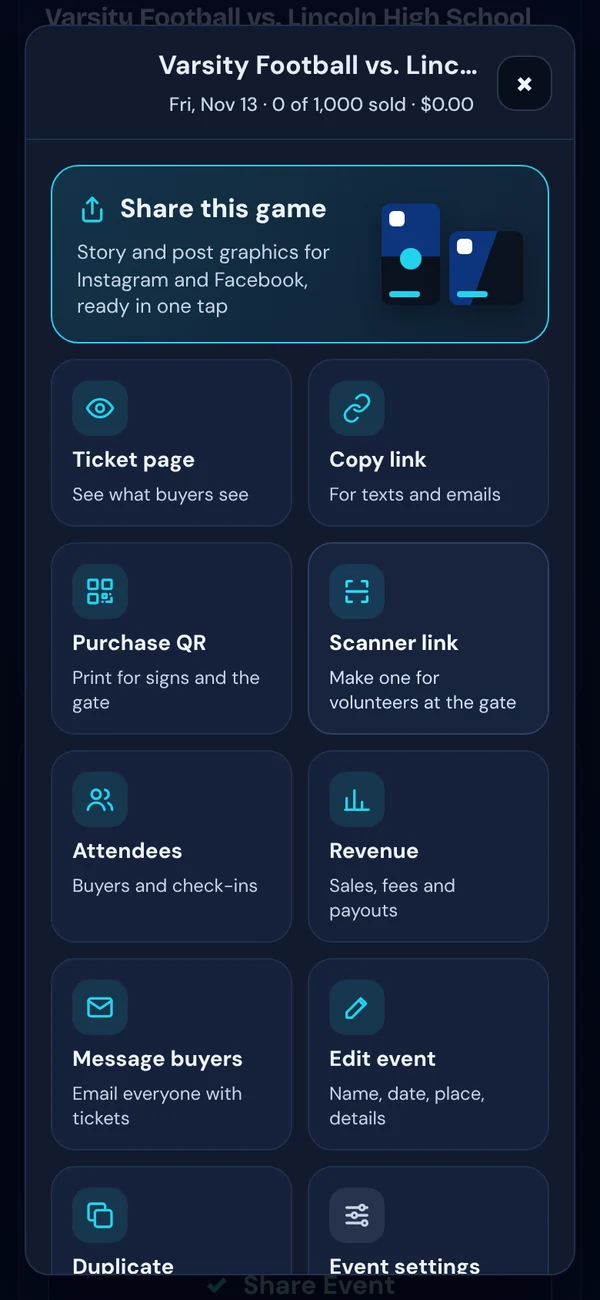
- On your dashboard, tap Manage on a published event, then Share this event. For passes, tap Share on the season under Passes. Right after you publish an event, this screen opens on its own.
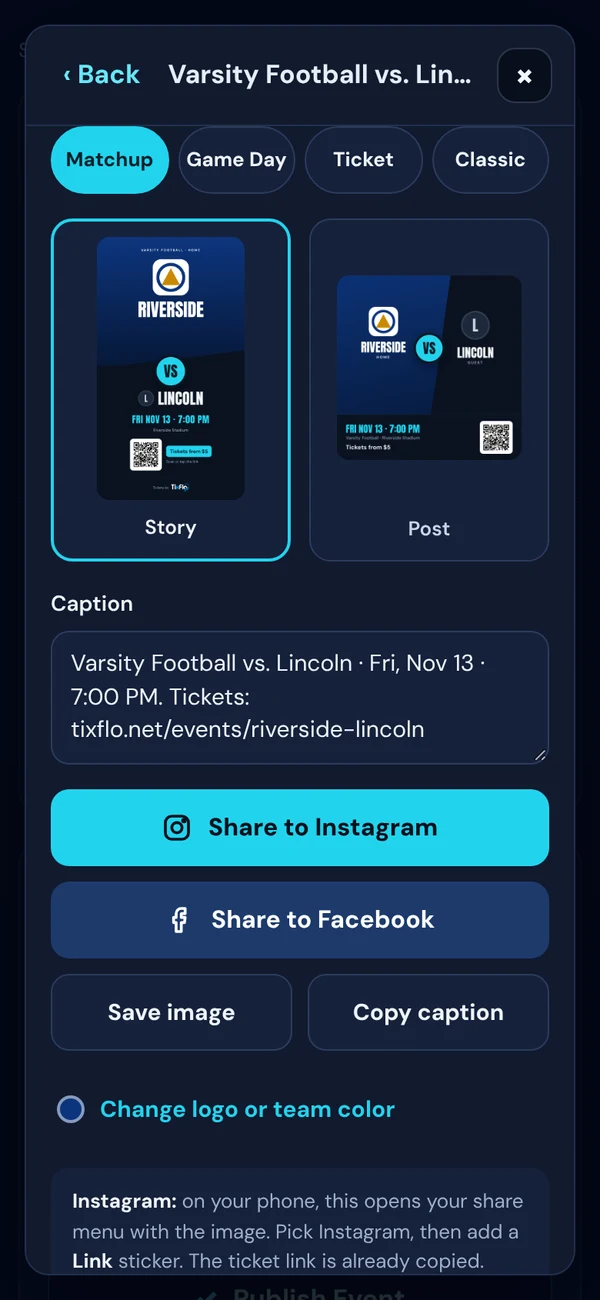
- Pick a style: Matchup, Game Day, Ticket or Classic.
- Pick the Story or the Post graphic. Both have a QR code that opens your tickets.
- Edit the Caption if you like.
- Tap Share to Instagram or Share to Facebook, or Save image and Copy caption to post anywhere else.
Pick a style
Story and post graphics for events come in four styles. TixFlo starts on Matchup when your event’s name has an opponent (like “Varsity Football vs. Lincoln”), and on Ticket when it doesn’t. The style you pick last is remembered on that device.
- Matchup: your logo and name on your brand color, a VS badge, and the opponent below.
- Game Day: a big GAME DAY headline with a bright stripe, the matchup, and the date, time and place.
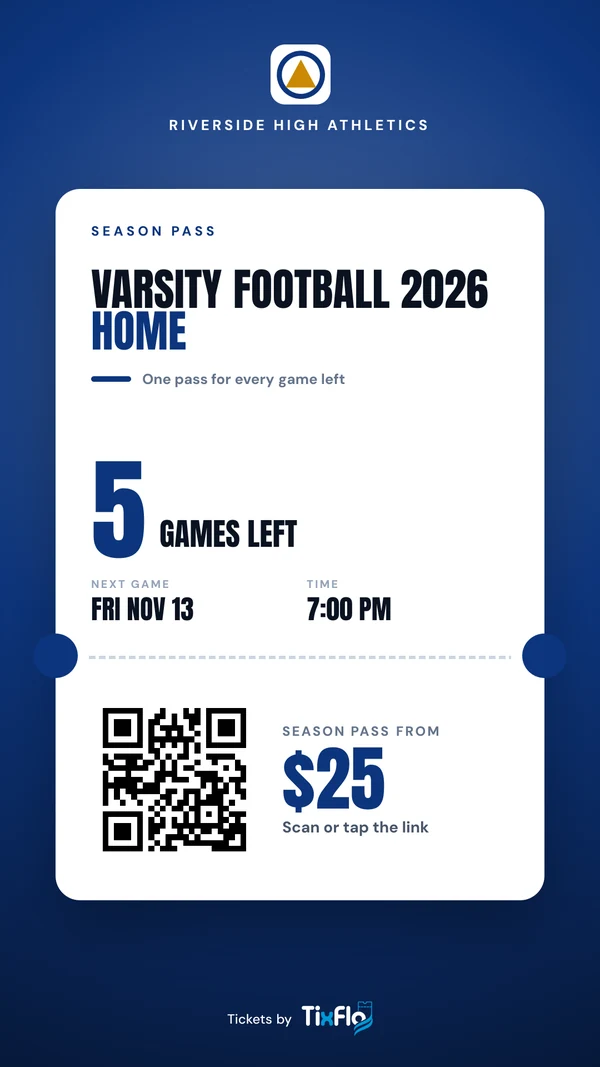
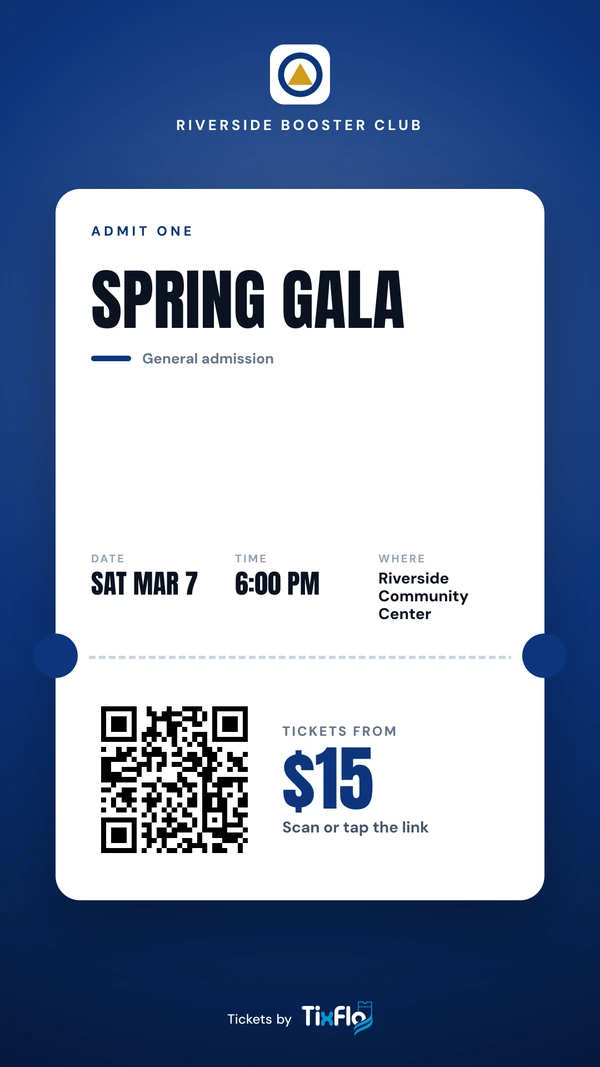
- Ticket: the graphic is a big ticket, with Admit One, the matchup, and the QR code on the tear-off stub.
- Classic: the original simple layout.
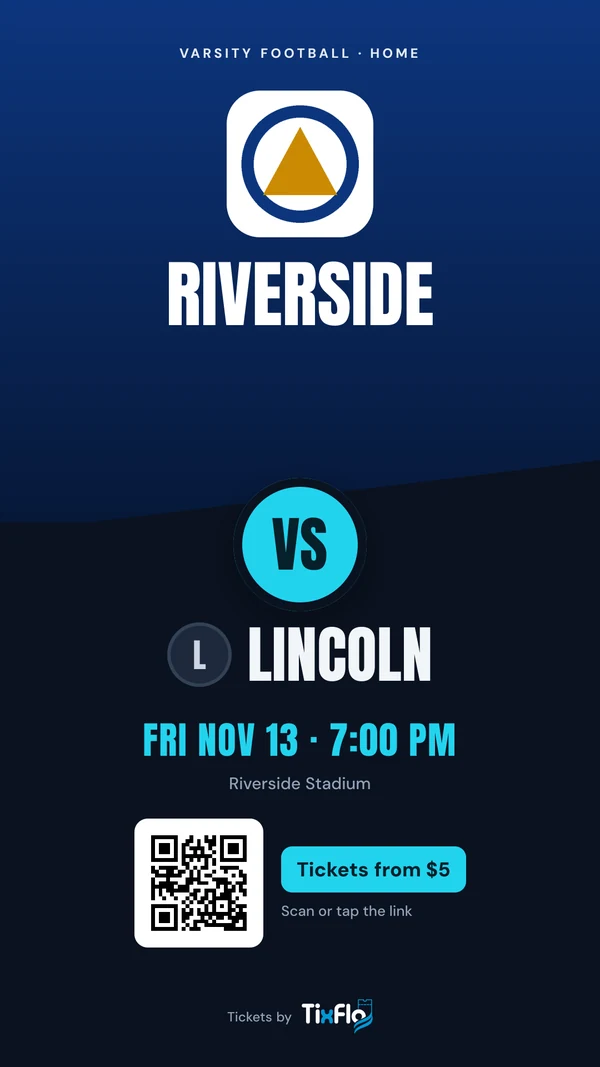
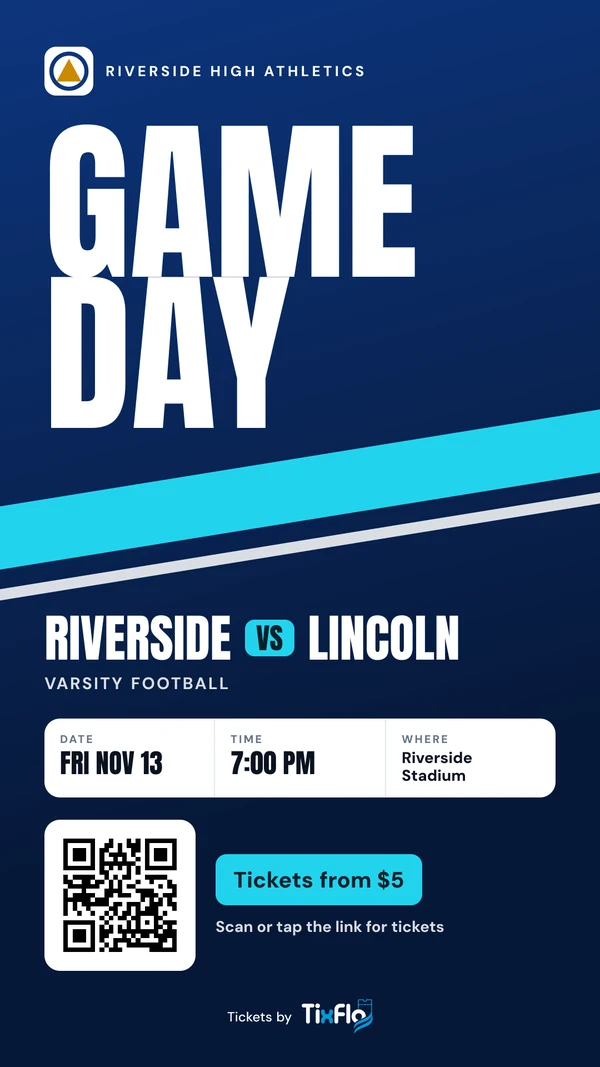
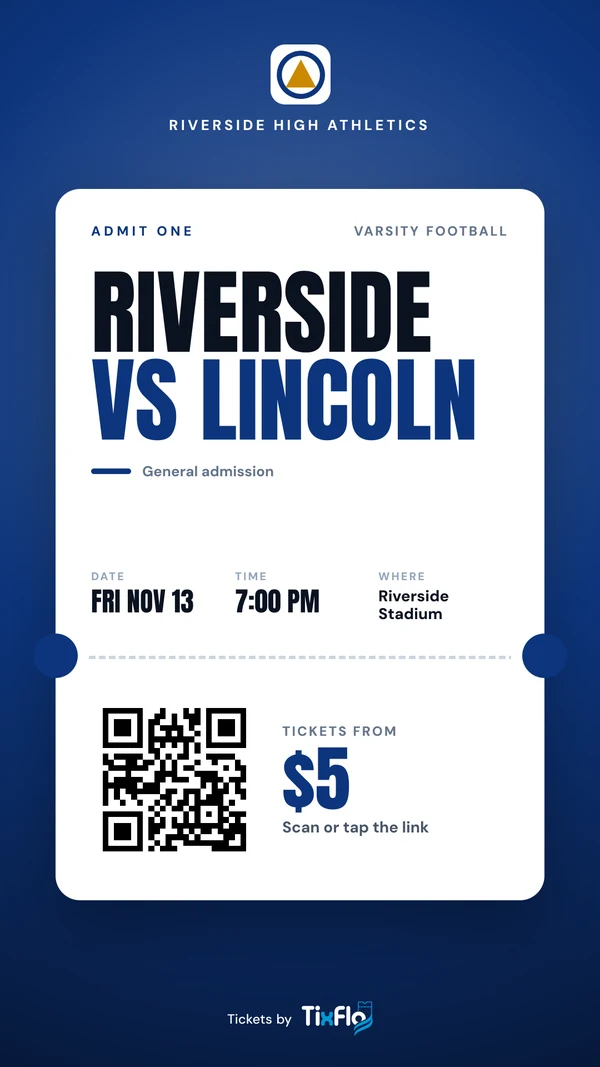
Tip: Name games like Varsity Football vs. Lincoln (or @ Lincoln for away games) and the Matchup, Game Day and Ticket styles show both teams.
Passes come in the Ticket and Classic styles. The ticket shows the pass’s name, how many events (or games) are left, the next one and the price, labeled Season pass or Event pass to match the pass.
Events that aren’t games
For a gala, play, concert, festival or fundraiser, TixFlo starts on Ticket, and Classic works well too. Both put your event’s name front and center, with the date, time, place, price and a QR code. (Game Day puts a big GAME DAY headline on the graphic, so save it for games.)
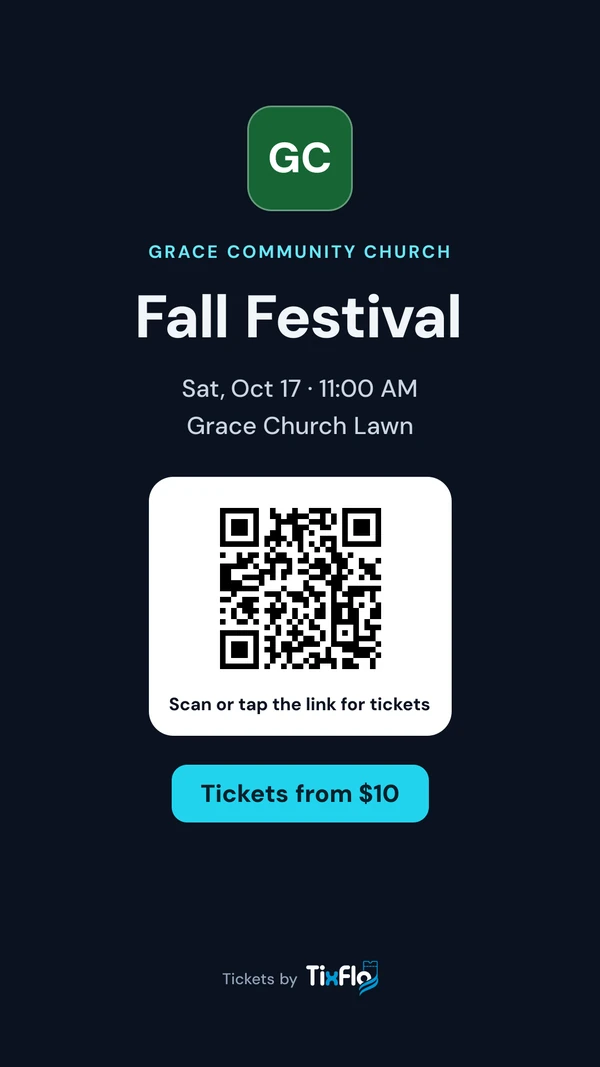
No logo? Your organization’s initials are shown on your brand color, like the church festival above.
Your logo and brand color
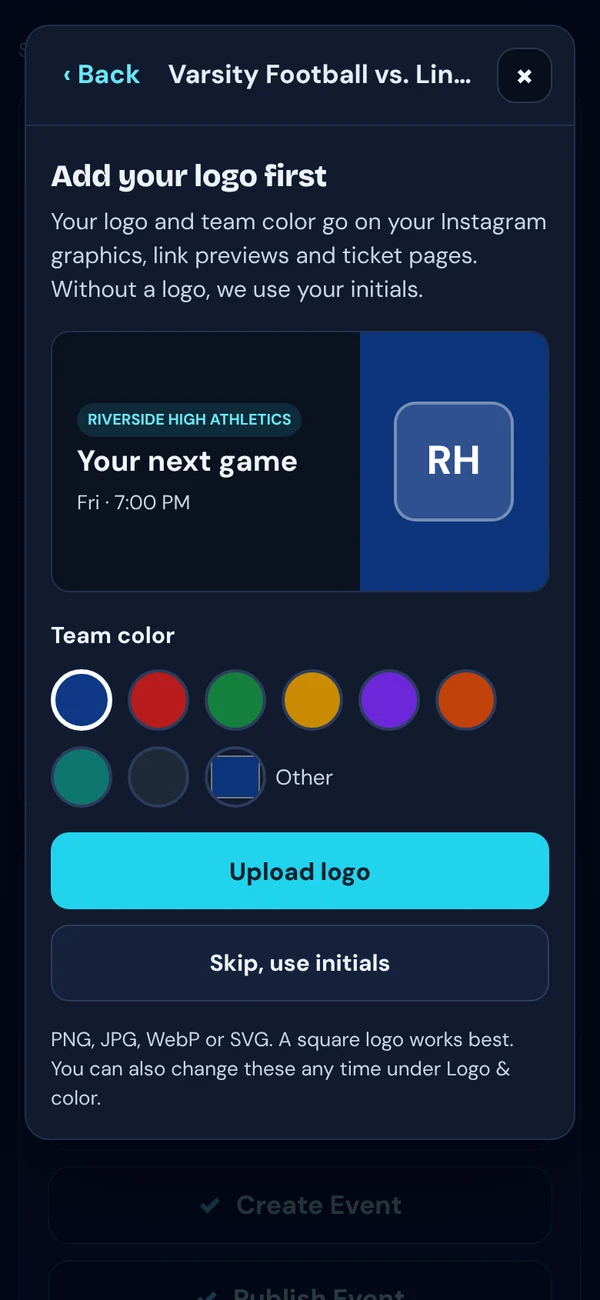
The first time you share, TixFlo asks for your logo and brand color and shows how they’ll look. Upload a logo, or tap Skip, use initials to use your organization’s initials on your brand color. To change them later, tap Change logo or brand color on the Share screen.
- On your phone, Share to Instagram opens your share menu with the graphic and copies your ticket link.
- Pick Instagram Stories (or Feed). In the Story, tap the sticker icon, choose Link, paste, and place it in the space at the bottom.
- On a computer, tap Save image and post it from the Instagram app. Links in Instagram captions aren’t clickable, so use the Link sticker or the link in your bio.
Share to Facebook opens Facebook’s share window with your ticket link, and copies the caption. Choose your Page, paste the caption, and post. Your event’s preview card shows on the post.
Tip: You can also change your logo and brand color any time under Logo & color on your dashboard. See Add your logo and brand color.