Create an event
Use the four-step guided setup: details, tickets, payments and review.
Tap Create event on your dashboard. Your draft saves in the browser as you go, so you can close it and come back.
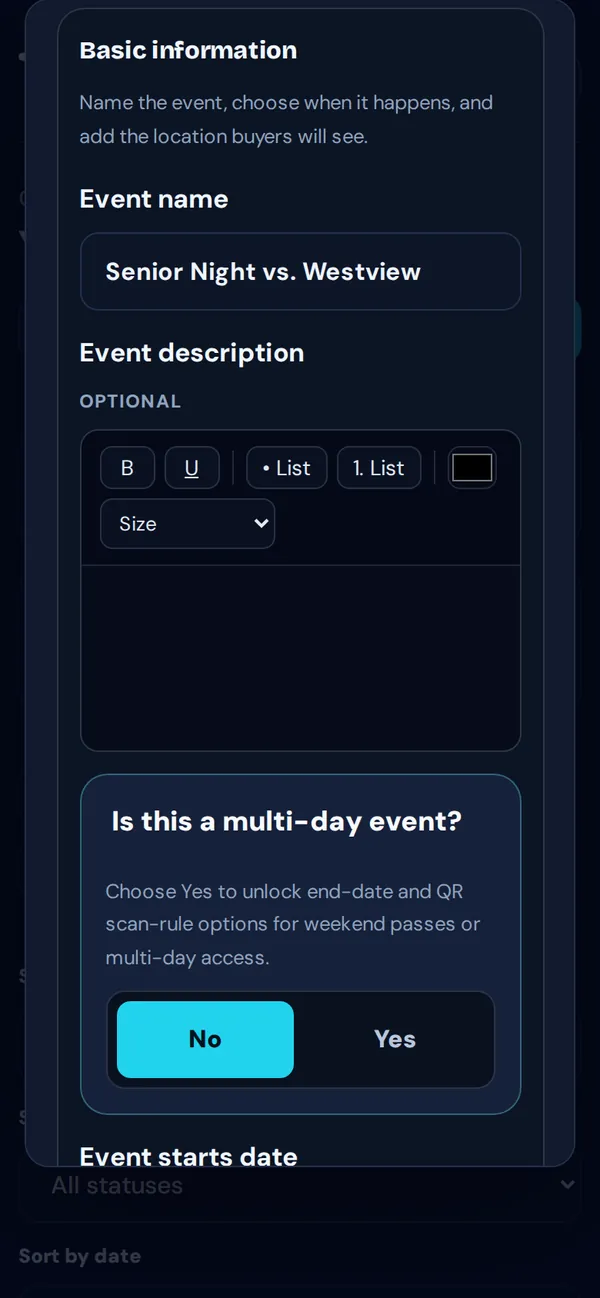
1. Basic info
Enter the Event name, an optional description, the start date and time, the Time zone, and the address. Choose Yes under Is this a multi-day event? for tournaments or weekend passes (multi-day events).
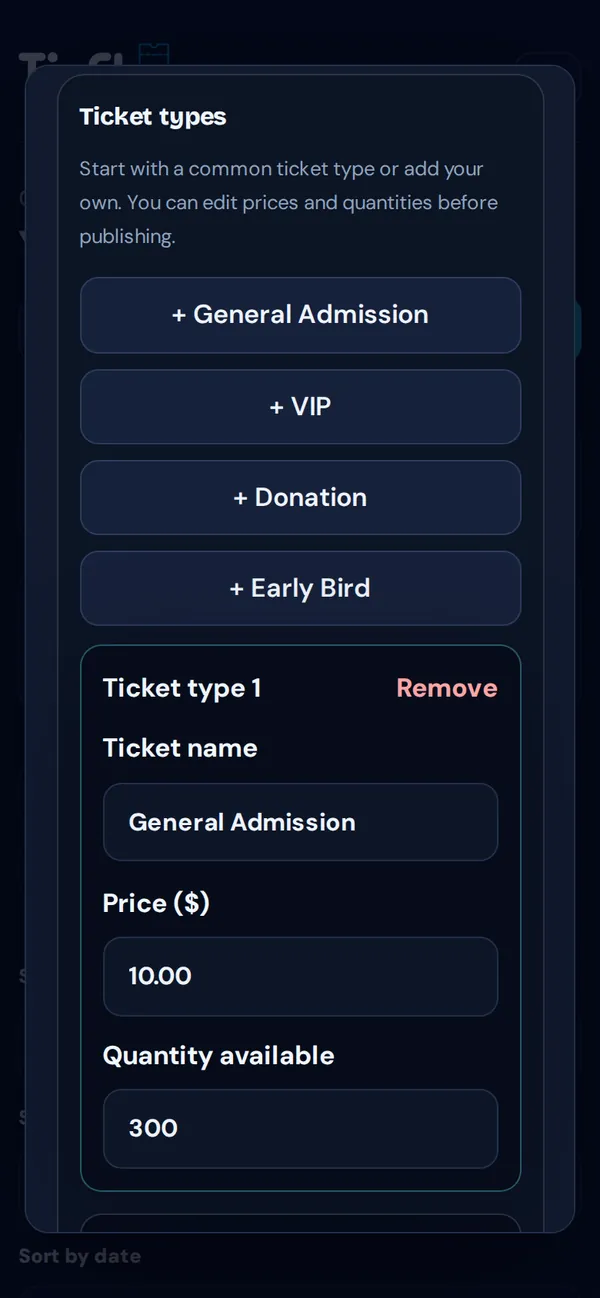
2. Tickets
Add ticket types with the quick buttons (+ General Admission, + VIP, + Donation, + Early Bird) or Add custom ticket type. Give each one a Ticket name, Price ($) and Quantity available, such as Adult $10 and Student $5.
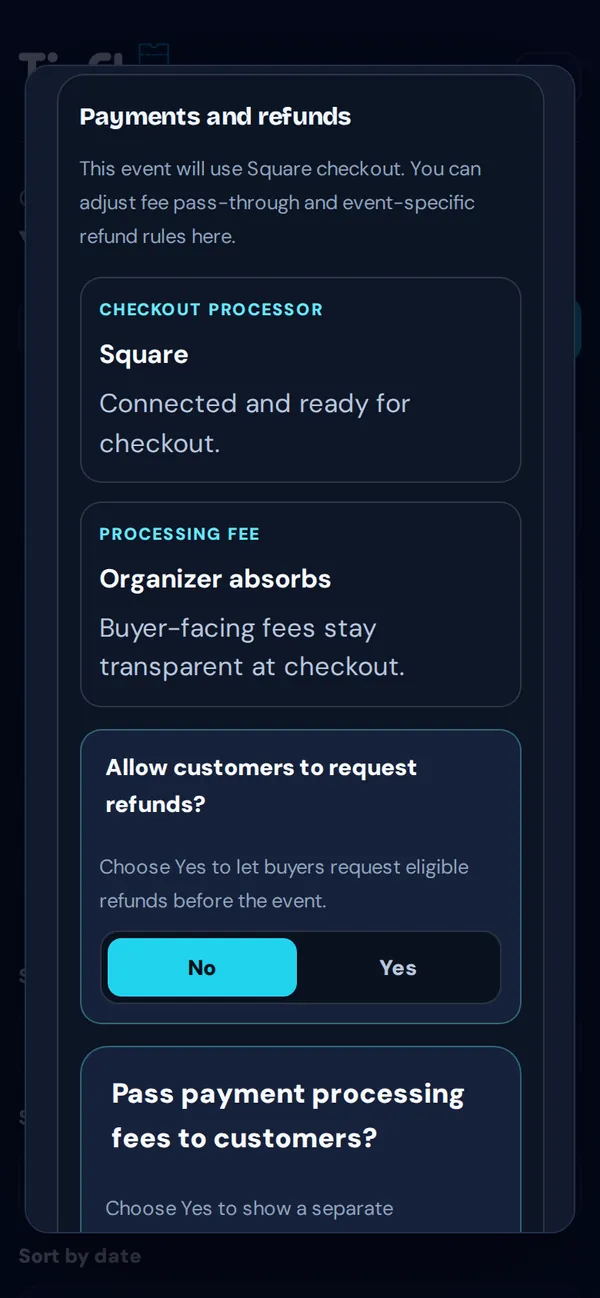
3. Payments and refunds
Shows which processor buyers will pay with. Choose whether buyers can request refunds (refund policy) and whether to pass fees to buyers. Tick Allow ticket changes after publishing if you might change prices later.
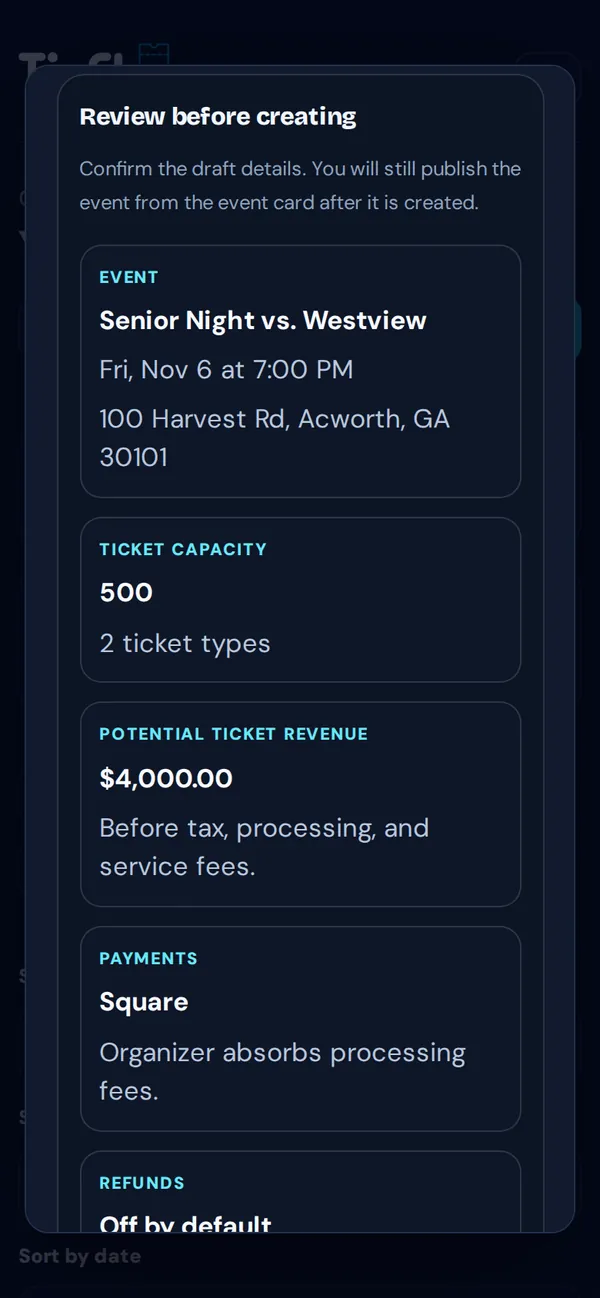
4. Review
Check the details, ticket capacity and potential revenue, then tap Create draft event.
Good to know: New events start as drafts that only you can see. When you’re ready, publish it. Ticket sales end automatically 12 hours after the event starts.
Tip: Running a whole season? Bulk upload creates many events from a spreadsheet, and Duplicate event copies one you’ve already set up.