Edit an event, ticket prices and ticket types
Change details, prices and quantities, or add a ticket type after you’ve published.
Event details
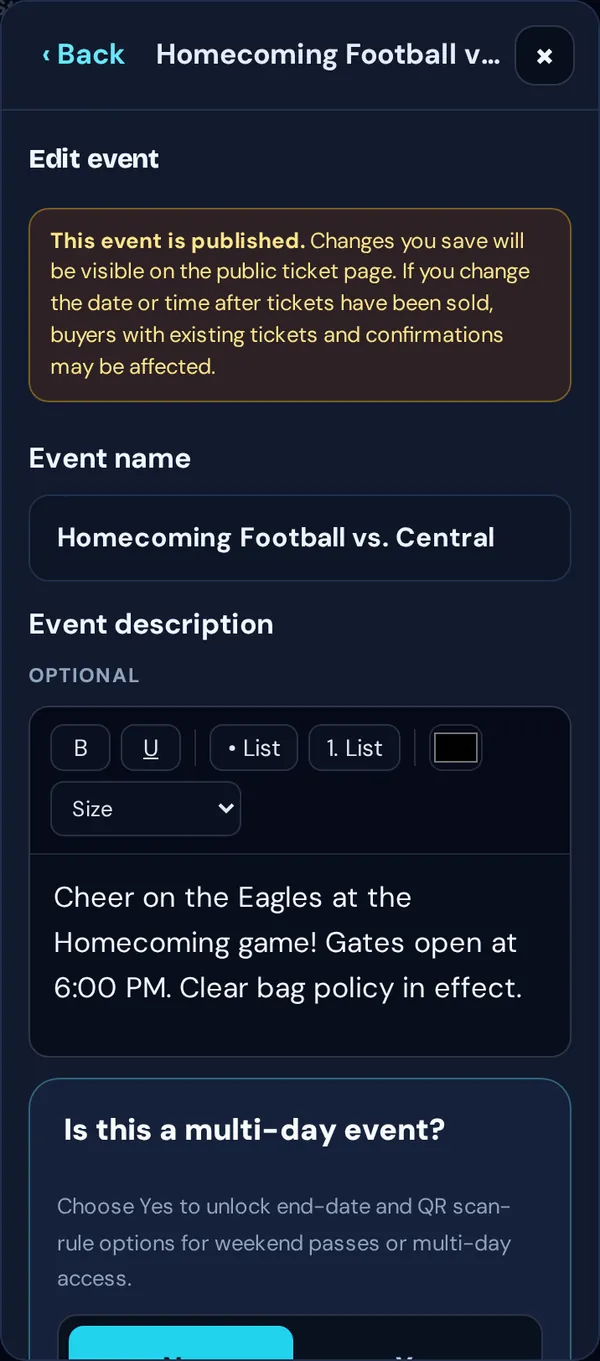
Manage → Edit event changes the name, description, date, time and location. On a published event, changes show on the buyer page right away. If you change the date after selling tickets, you’ll be asked to confirm. To tell buyers about a new date, use Reschedule instead.
Ticket prices and types
- Tap Manage → Event settings → Ticket prices.
- If it says the prices are locked, tick Allow ticket changes after publishing and tap Save ticket change setting.
- Change prices under Edit prices and tap Update ticket prices, or add a new type under Add ticket type.
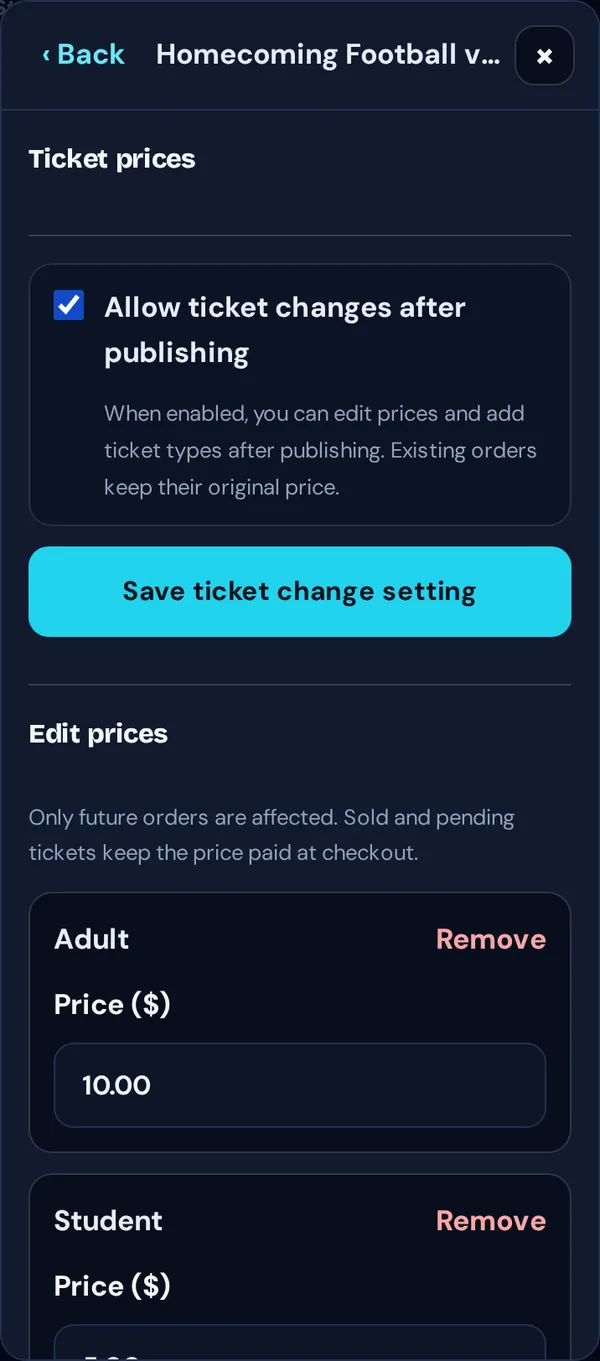
Good to know: Price changes only affect new orders. People who already bought keep the price they paid.