Scan tickets at the gate
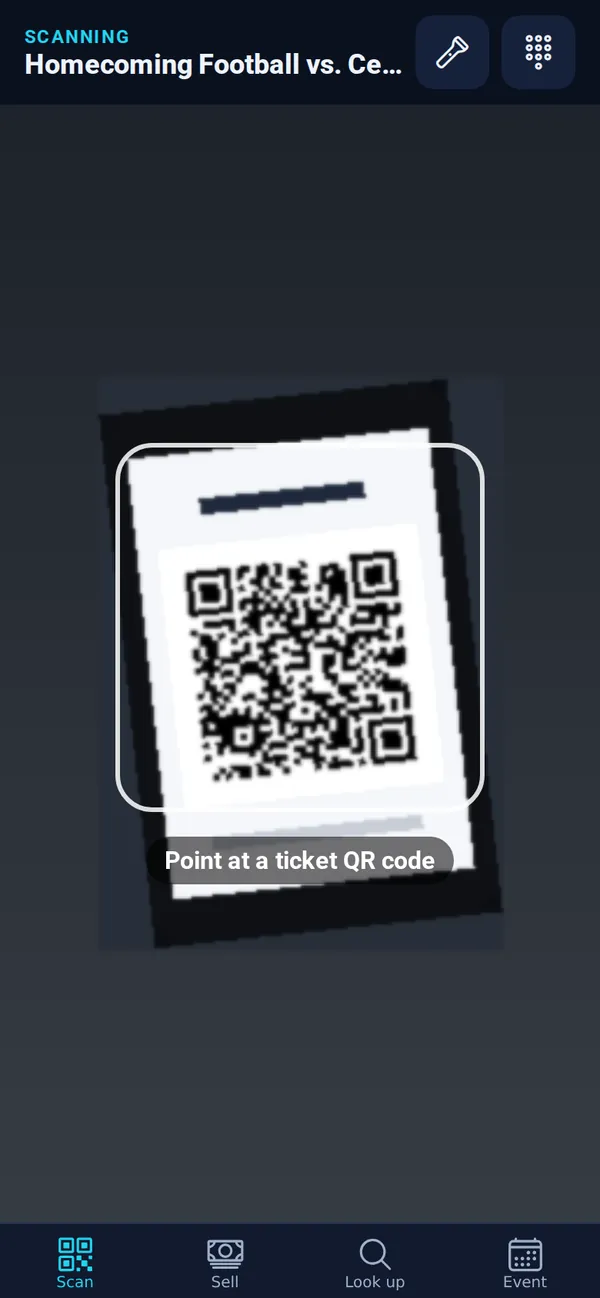
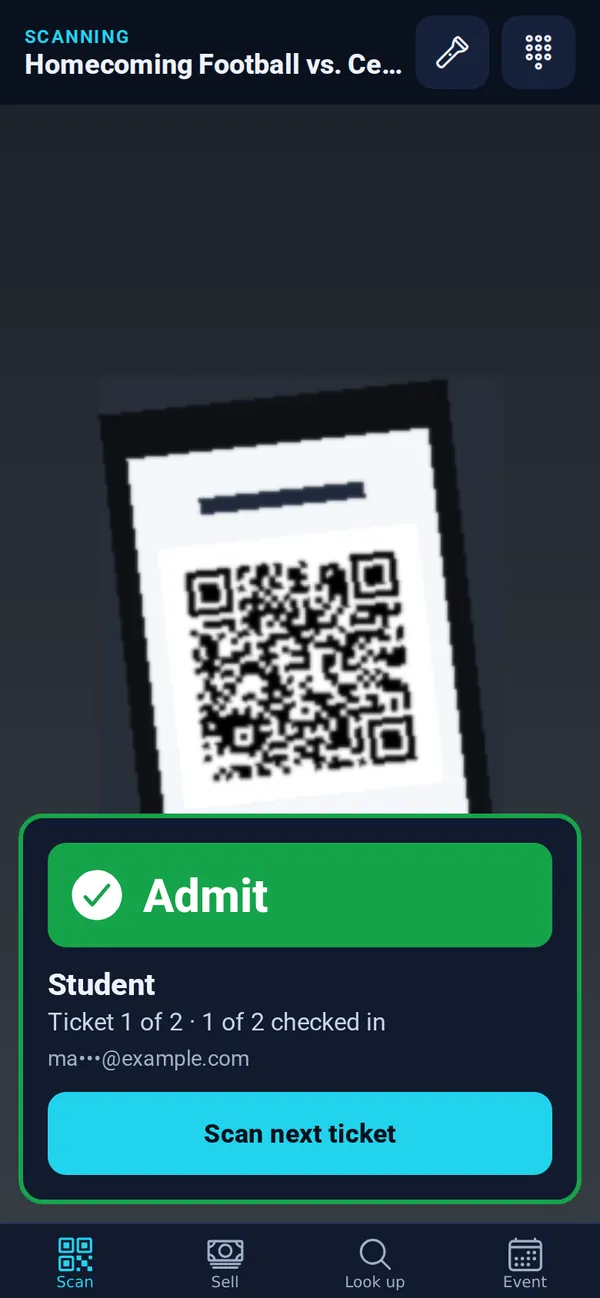
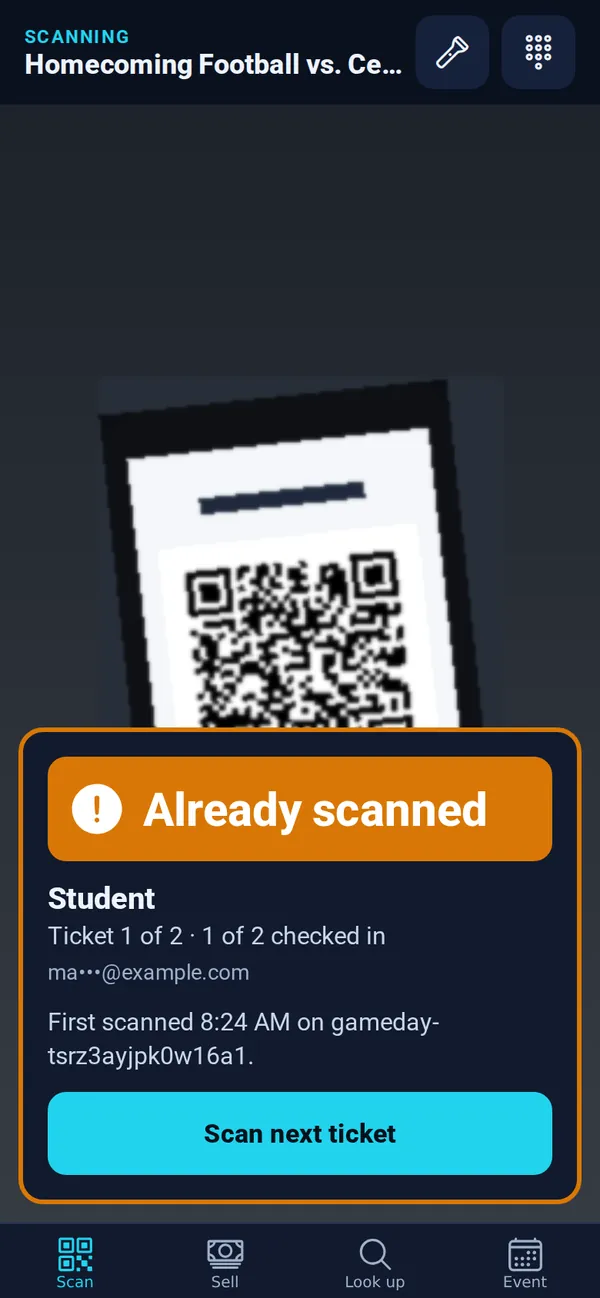
Point the camera at a ticket: green means admit, orange means already scanned, red means don’t admit.
- Open the Scan tab. The top shows which event you’re scanning for.
- Point the camera at the ticket’s QR code on the buyer’s phone or printout.
- Read the result, then tap Scan next ticket.
What the results mean
- Admit (green): a good ticket. Let them in. It shows the ticket type and how many on the order are checked in.
- Already scanned (orange): this ticket was used before. It shows when and on which device, so you can sort it out.
- Don’t admit (red): the ticket isn’t valid here, for example it was refunded, is for a different event, or isn’t a TixFlo ticket. The reason is shown.
Dark gate? Cracked screen?
- Tap the flashlight button at the top to light up the ticket.
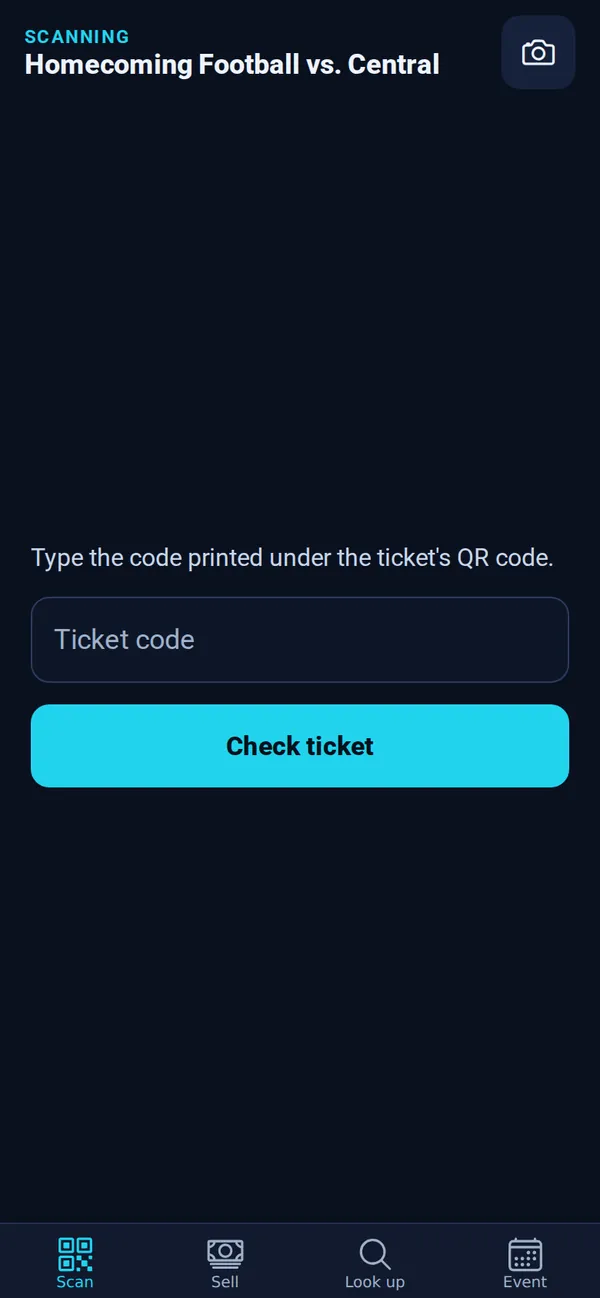
- Tap the keypad button to Type a code: enter the code printed under the ticket’s QR code and tap Check ticket.
Tip: Can’t find the buyer’s ticket? Use Look up to search by their email.
Good to know: Several phones can scan the same event at once. Each ticket can only be admitted once (or once per day for multi-day passes).