Take cards with Tap to Pay
Accept contactless cards, Apple Pay and Google Pay on the phone itself, with no card reader.
What you need
- The organization uses Square for checkout, connected on the website (Connect Square).
- iPhone: an iPhone XS or newer. Android: a phone with NFC, with Developer options turned off.
- On iPhone, an owner or admin sets up Tap to Pay first and accepts Apple’s terms. After that, every gate phone can be set up.
Set up a phone (once)
- Open the Event tab and tap Set up Tap to Pay (on iPhone, Set up Tap to Pay on iPhone). Gate staff on iPhone may first be asked to tap It’s on: set up this phone.
- Sign in to the organizer’s Square account when asked. The first time on iPhone you’ll also accept Apple’s Tap to Pay terms.
- When it says Ready on this phone, you’re set. It takes about a minute.
Take a payment
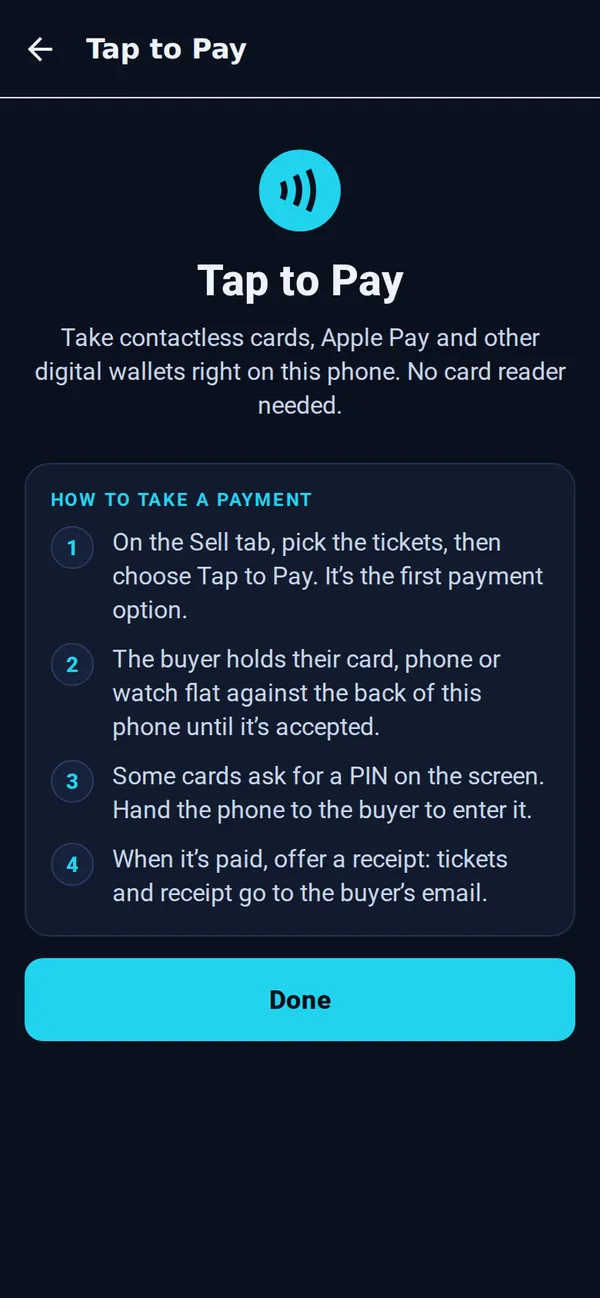
- On Sell, pick the tickets, add the buyer’s email if they want a receipt, and tap Tap to Pay.
- The buyer holds their card, phone or watch flat against the back of your phone (on iPhone, near the top) until it’s accepted. Some cards ask for a PIN: hand them the phone.
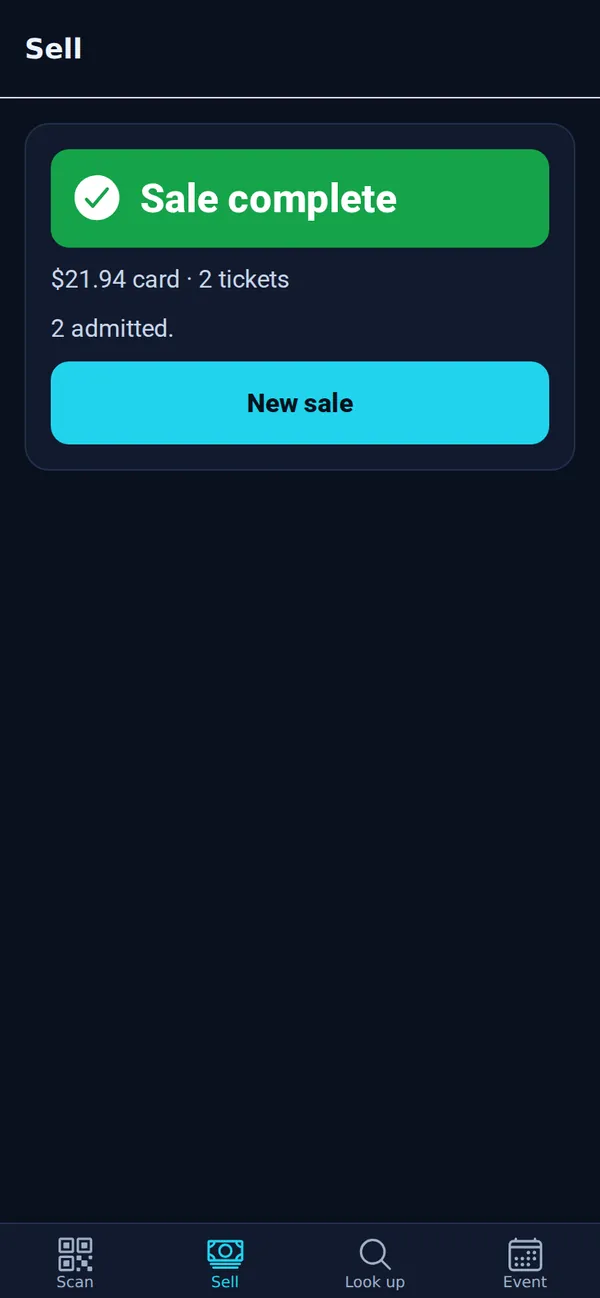
- Tap Admit all now if they’re at the gate, or Done (they’ll scan in later).
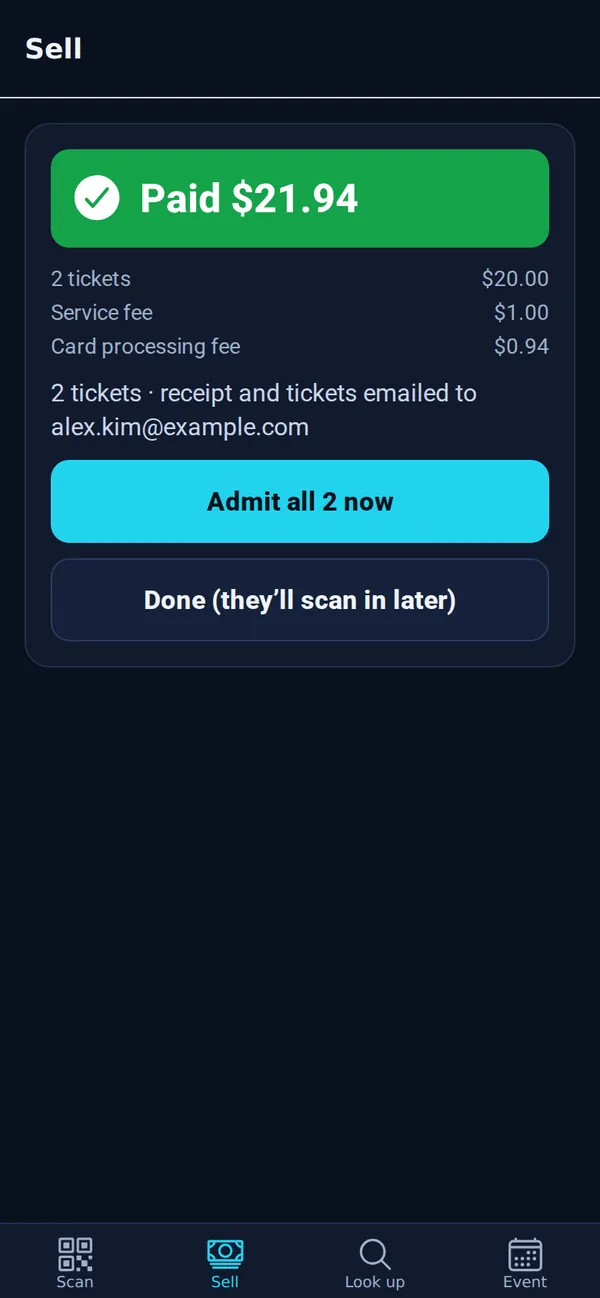
Good to know: Card sales show the exact total, with fees, before the buyer pays. If the app says Square needs to be reconnected, an owner or admin opens the dashboard on the website and taps Payments → Reconnect Square.