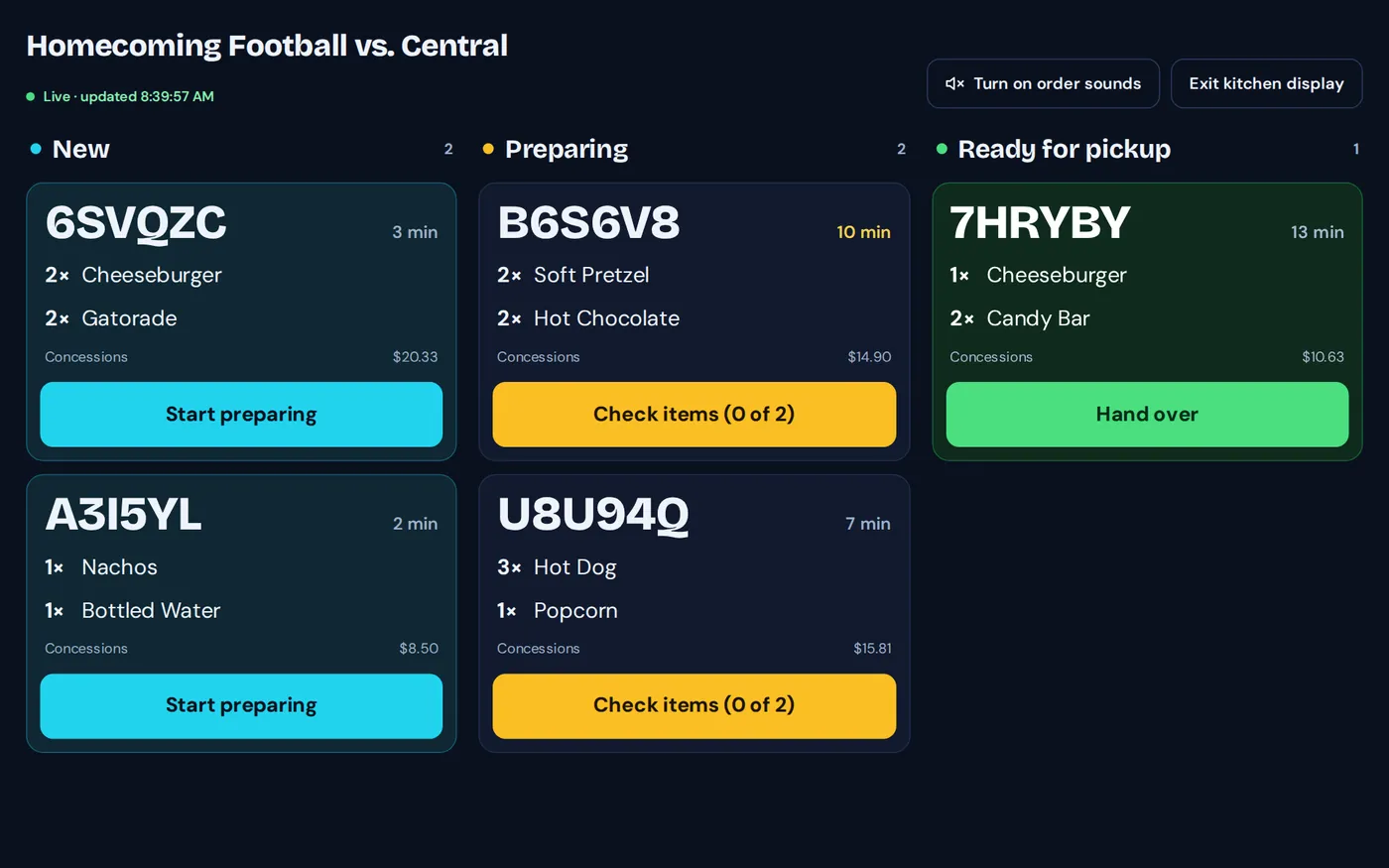
Run live orders and the kitchen display
See new orders arrive, check off items as you make them, and mark orders ready.
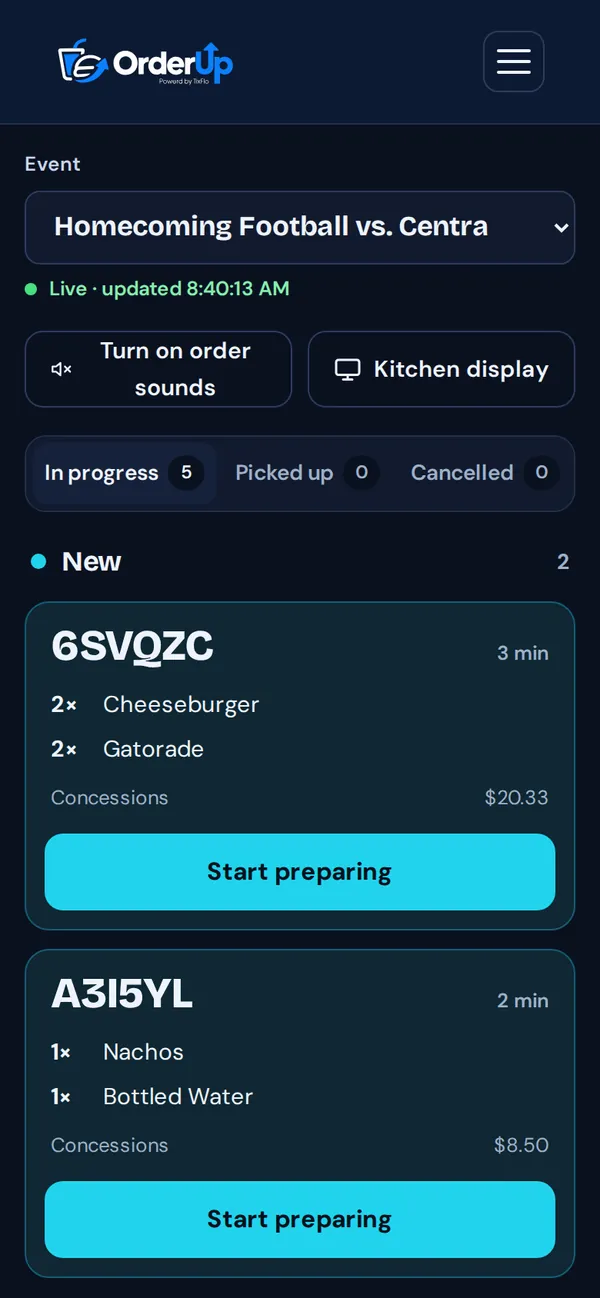
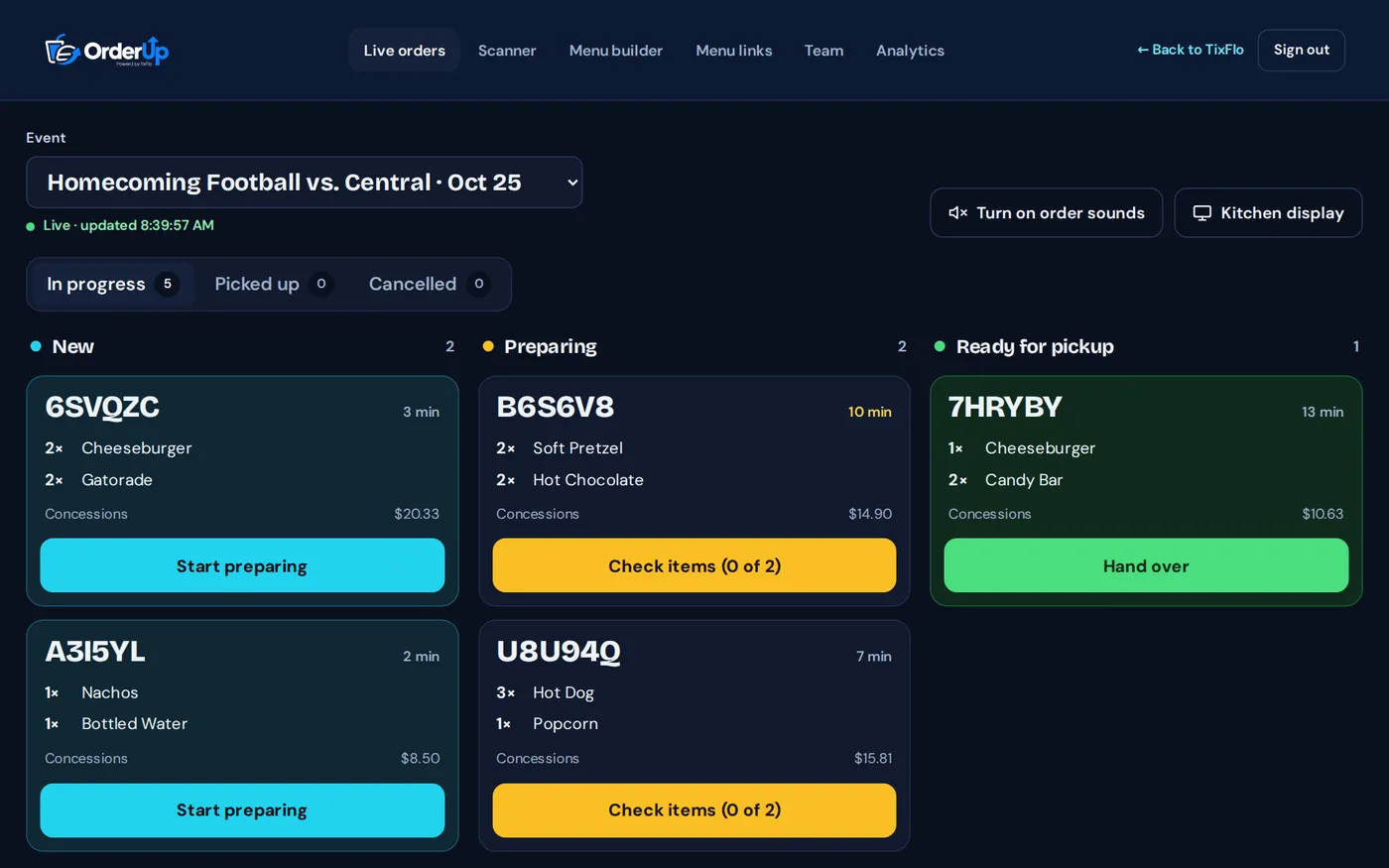
- Open Live orders and choose the event. It updates by itself.
- Tap Turn on order sounds to hear new orders arrive.
- New orders appear under New. Tap Start preparing.
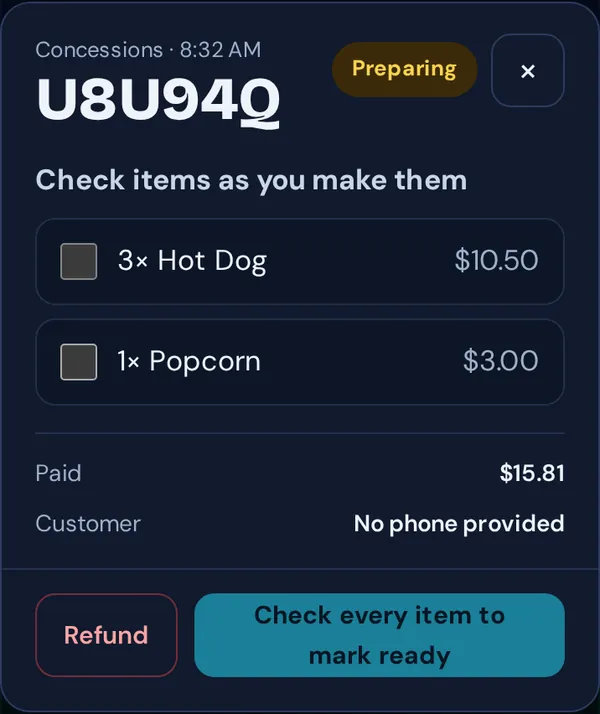
- Open the order and tick each item as you make it. When every item is checked, tap Mark ready. It moves to Ready for pickup and the fan’s screen updates.
- Hand it over at the window using the Pickup scanner.
Kitchen display
Tap Kitchen display for a full-screen board made for a tablet or TV in the stand. Tap Exit kitchen display to go back.