Payment setup: see and switch how buyers pay
Check which processor buyers pay with, switch between Stripe and Square, and reconnect or disconnect an account.
Open Payments on your dashboard, or Account → Payments. The page has three parts, top to bottom.
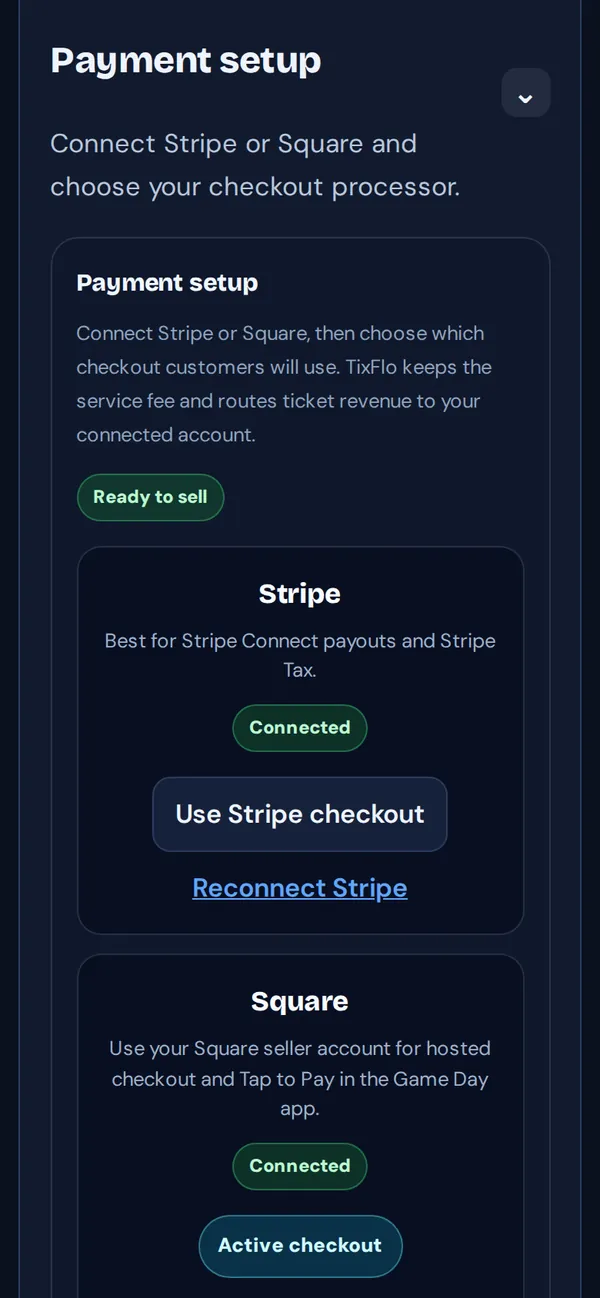
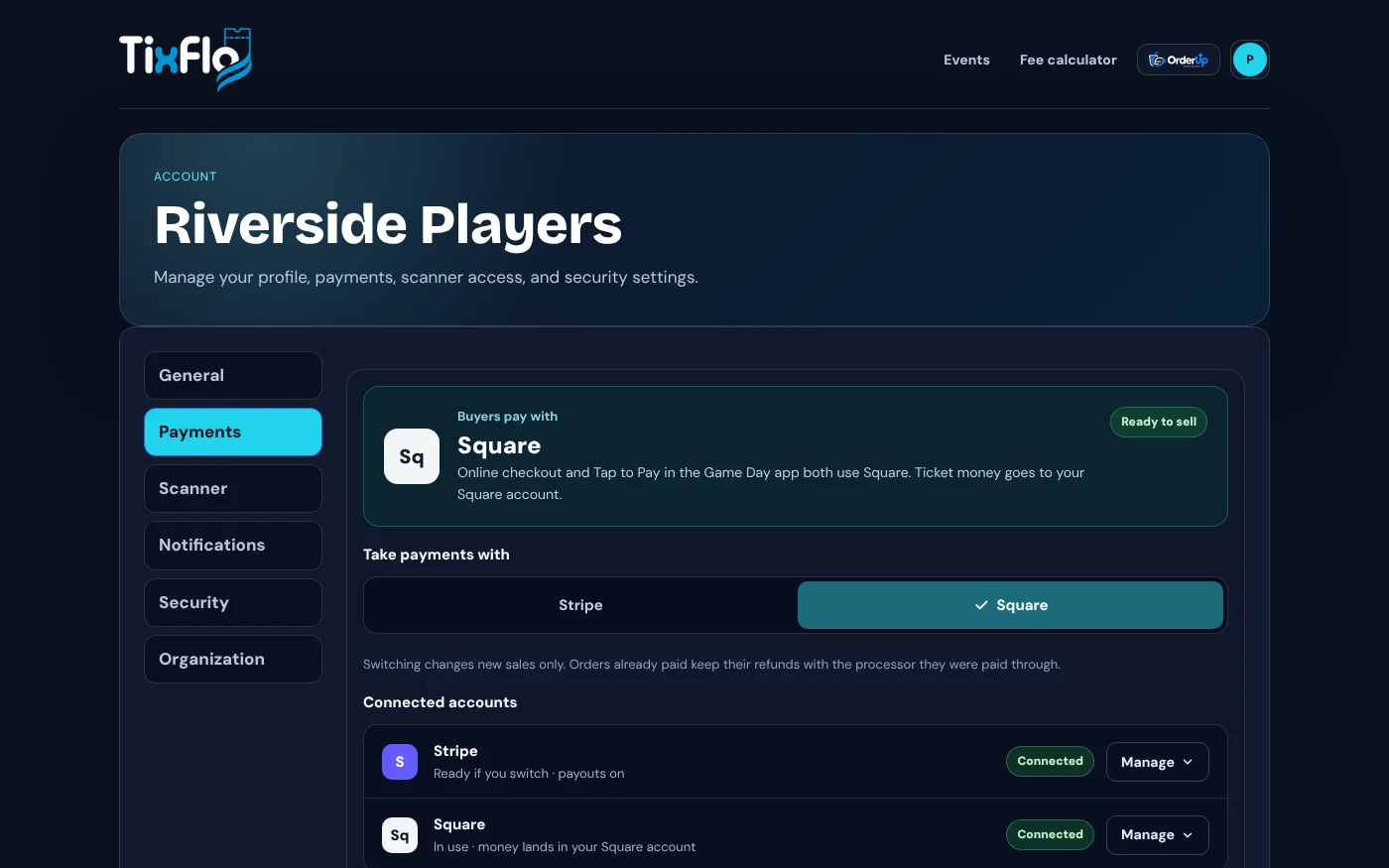
1. Buyers pay with
The box at the top says which processor buyers pay with right now, and Ready to sell when it’s working. Online checkout and Tap to Pay in the Game Day app always use the same one. Ticket money goes to that account.
If it turns amber and says Action needed: buyers can’t pay yet, connect an account below, or switch to one that’s already connected. Until then you can’t publish events.
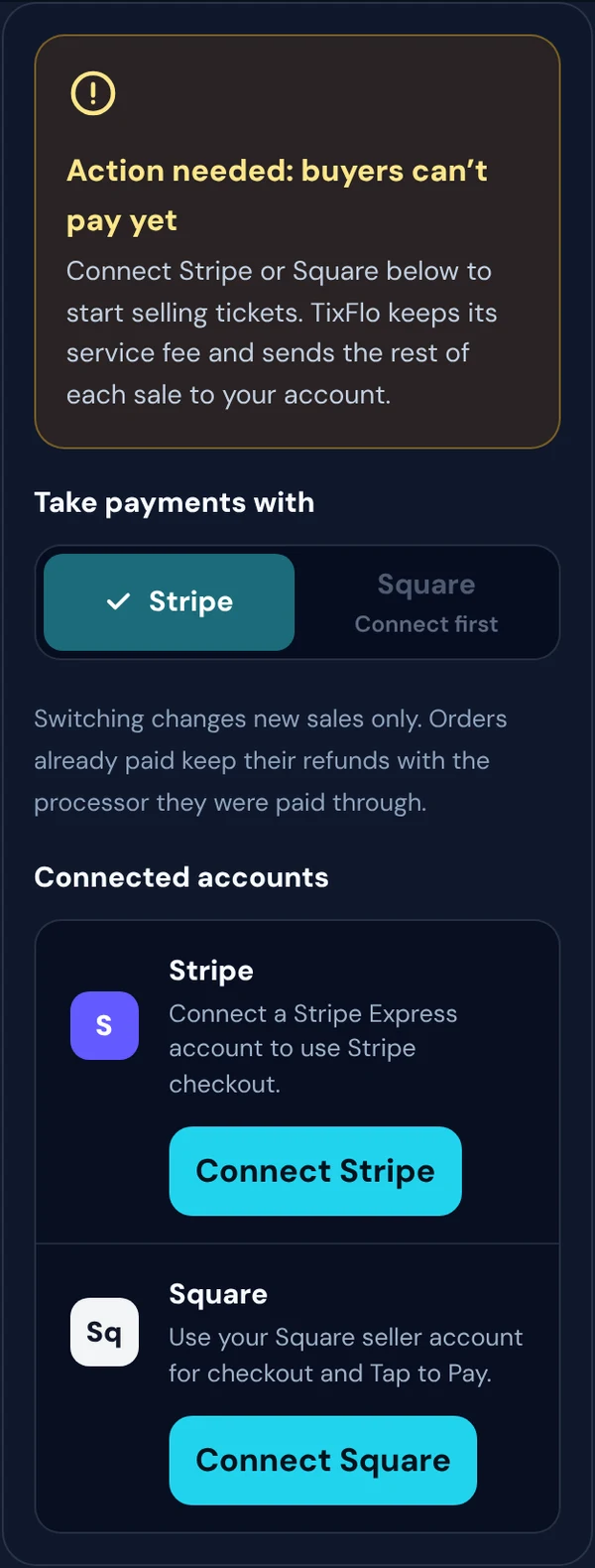
2. Take payments with
This switch picks Stripe or Square. You can only pick one that’s connected; the other says Connect first.
- Under Take payments with, tap the one you want.
- Read what changes, then tap Switch to Square (or Switch to Stripe).
- The box at the top now shows the new one.
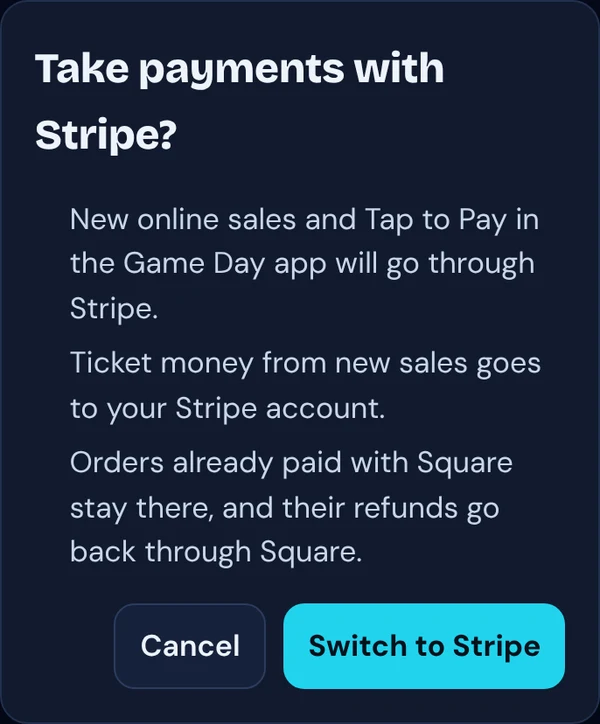
- Only new sales change. Events already on sale keep working and use the new processor from now on.
- Orders already paid stay with the processor they were paid through, and their refunds go back the same way.
- Tap to Pay in the Game Day app follows the switch. If a gate phone asks, set Tap to Pay up again: see Take cards with Tap to Pay.
Good to know: Square can’t be used while Stripe Tax collects your sales tax. To switch, contact TixFlo support to turn Stripe Tax off first.
3. Connected accounts
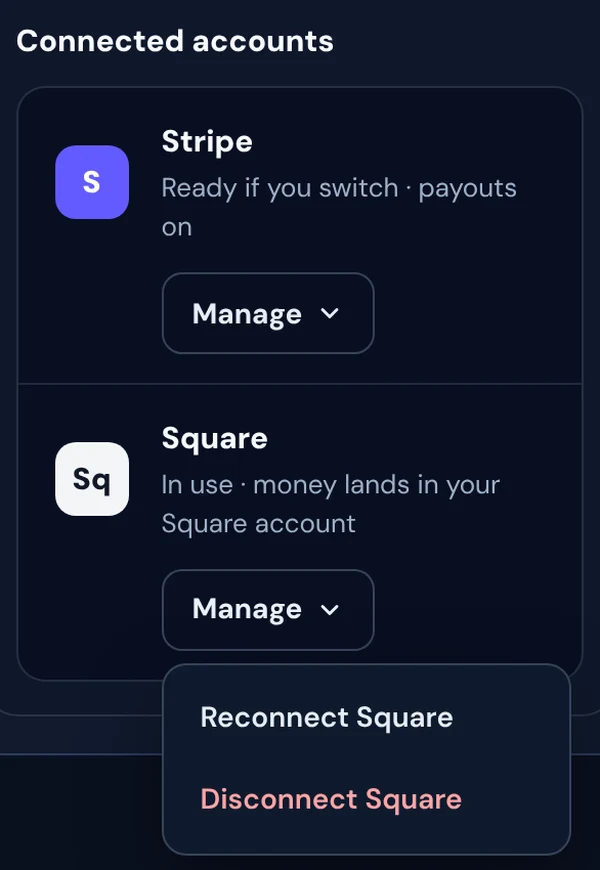
One line for Stripe and one for Square. Under each name it says In use, Ready if you switch, or what’s still missing. Not connected yet? Tap Connect Stripe or Connect Square: see Connect Stripe and Connect Square.
For a connected account, tap Manage:
- Reconnect: sign in again, for example to switch to a different Stripe or Square account, approve Square’s latest permissions, or fix a connection problem.
- Disconnect: only the organization’s owner sees this. You can’t disconnect the one buyers pay with while an event is on sale: switch first, or wait until your events are over.
Stripe or Square?
- Stripe: payouts straight to your bank, and Stripe Tax can collect sales tax for you.
- Square: money lands in the Square account you already use, buyers can also pay with Cash App, and you handle sales tax yourself.
- Both work with Tap to Pay in the Game Day app (Stripe only without Stripe Tax).
Tip: Connect both if you like. Keeping a second one ready means you can switch in seconds if one has a problem on event day.