Send a ticket to someone
Someone arriving separately, like a grandparent? Send them just their ticket by text. They don’t get the rest of your order.
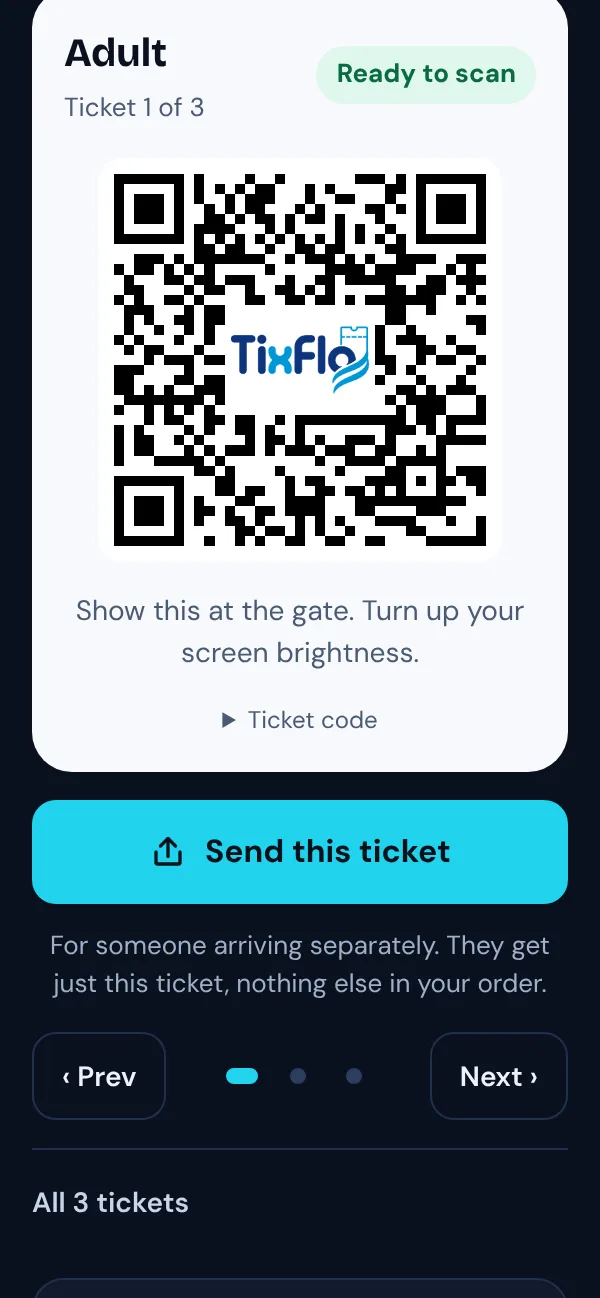
- Open your tickets from your confirmation email (or Find my tickets).
- Use Next to get to the ticket you want to send, then tap Send this ticket. In the email, you can also tap Send this ticket next to that ticket.
- The first time, enter your first name so they know who it’s from.
- Your phone’s share menu opens. Pick Messages, WhatsApp, email or any app and choose who to send it to. On a computer, copy the link and paste it into a message.
What they get
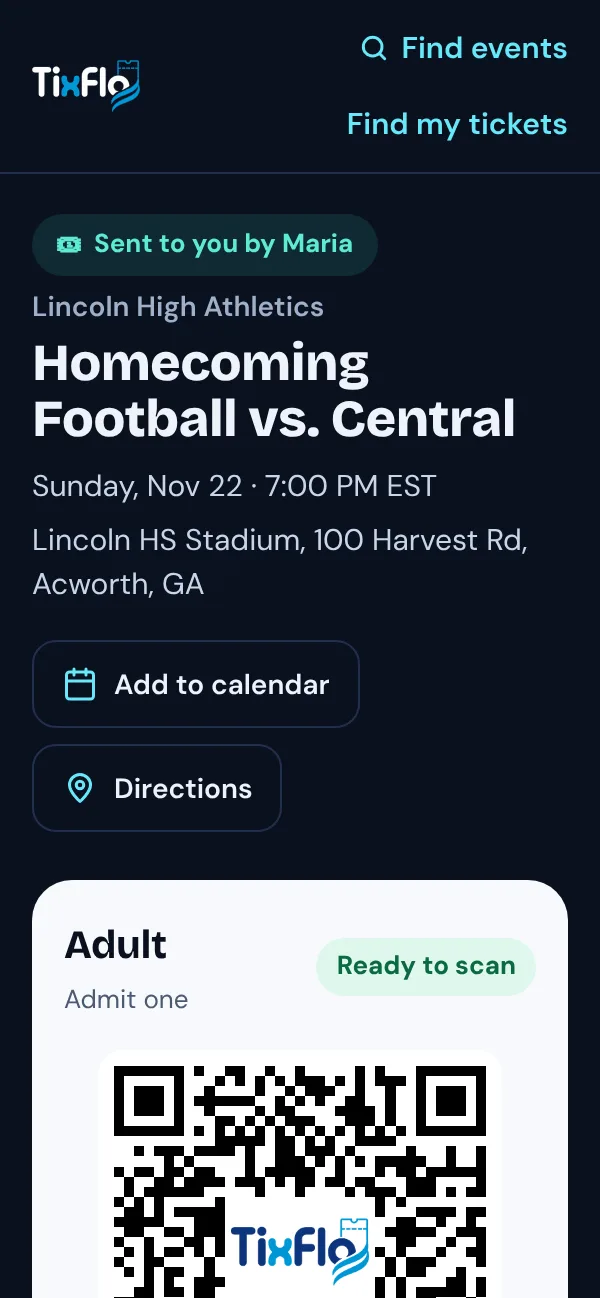
- A page with just that one ticket: its QR code, the event details, Add to calendar and Directions.
- They can’t see your other tickets, your email address or your refund options, and they can’t send the ticket on.
- They show the QR code at the gate like any ticket.
After you send it
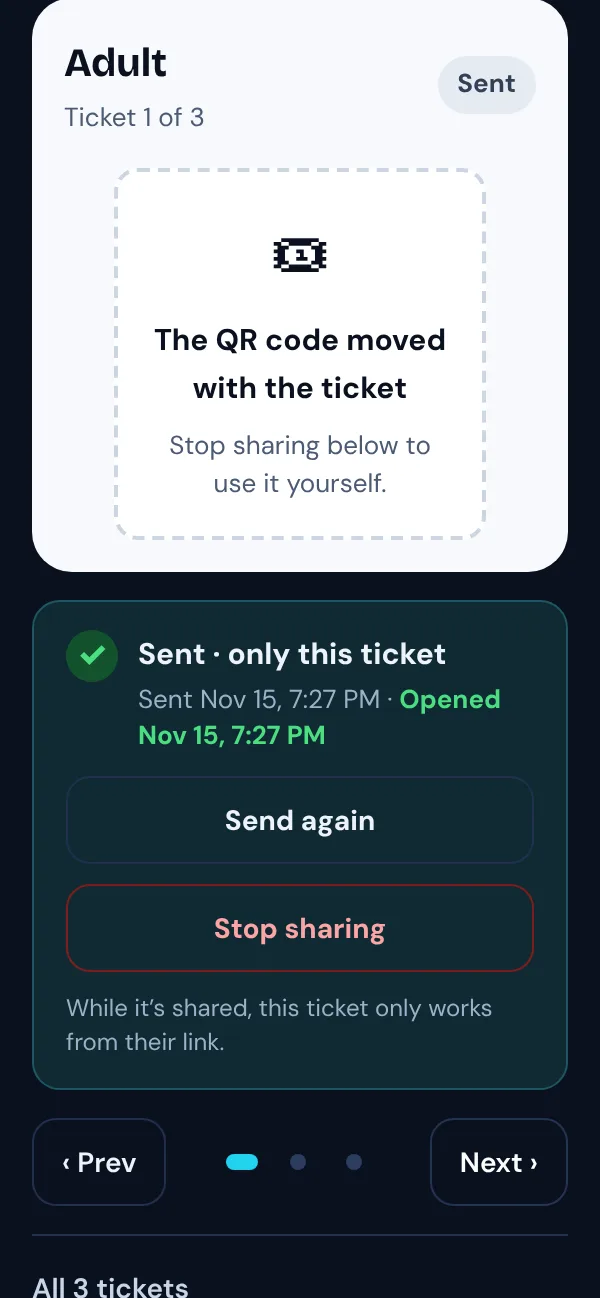
- The QR code moves with the ticket. It works only from their link, so the copy in your email and on your page stops working. That way the ticket can’t be used twice.
- Your page shows Sent, when you sent it, and when they Opened it.
- Tap Send again to share the same link again.
- Tap Stop sharing to take it back. Their link stops working and the QR code comes back to your page. Use the one on your page, not the old one in your email.
Passes work the same way: tap Send this pass on your pass page. The person you send it to can use it at every event it covers.
Good to know: Only the person who bought the tickets can send them. A ticket that’s already been scanned can’t be sent, and once they’ve been scanned in, it can’t be taken back.